Allan Vu is a Digital Marketing expert and the driving force behind BOGOS’s blog content. With a deep understanding of eCommerce and Shopify promotions, he is passionate about helping merchants unlock the full potential of their stores.
At BOGOS, Allan creates valuable, practical content focused on strategies like Free Gifts, Buy X Get Y, product bundles, and upsell offers to empower Shopify sellers to grow their businesses effectively.
Known for his clear, insightful writing, Allan is dedicated to delivering actionable advice that makes a real difference for BOGOS’s readers.
Section 1: We’ll begin by explaining the “build a box” concept, showing you how this interactive bundle works with clear examples and highlighting its key benefits, such as boosting customer engagement and increasing the average order value.
Section 2: Ready to create your own? A detailed step-by-step guide will then walk you through the entire process of setting up a Shopify build a box page from start to finish using the powerful BOGOS app.
Section 3: To ensure your new feature is a success, we’ll share creative ideas and essential tips for using your “build a box” offer effectively. You’ll learn the importance of keeping the process simple, clearly highlighting the value customers receive, and continuously testing and refining your offer for the best results.
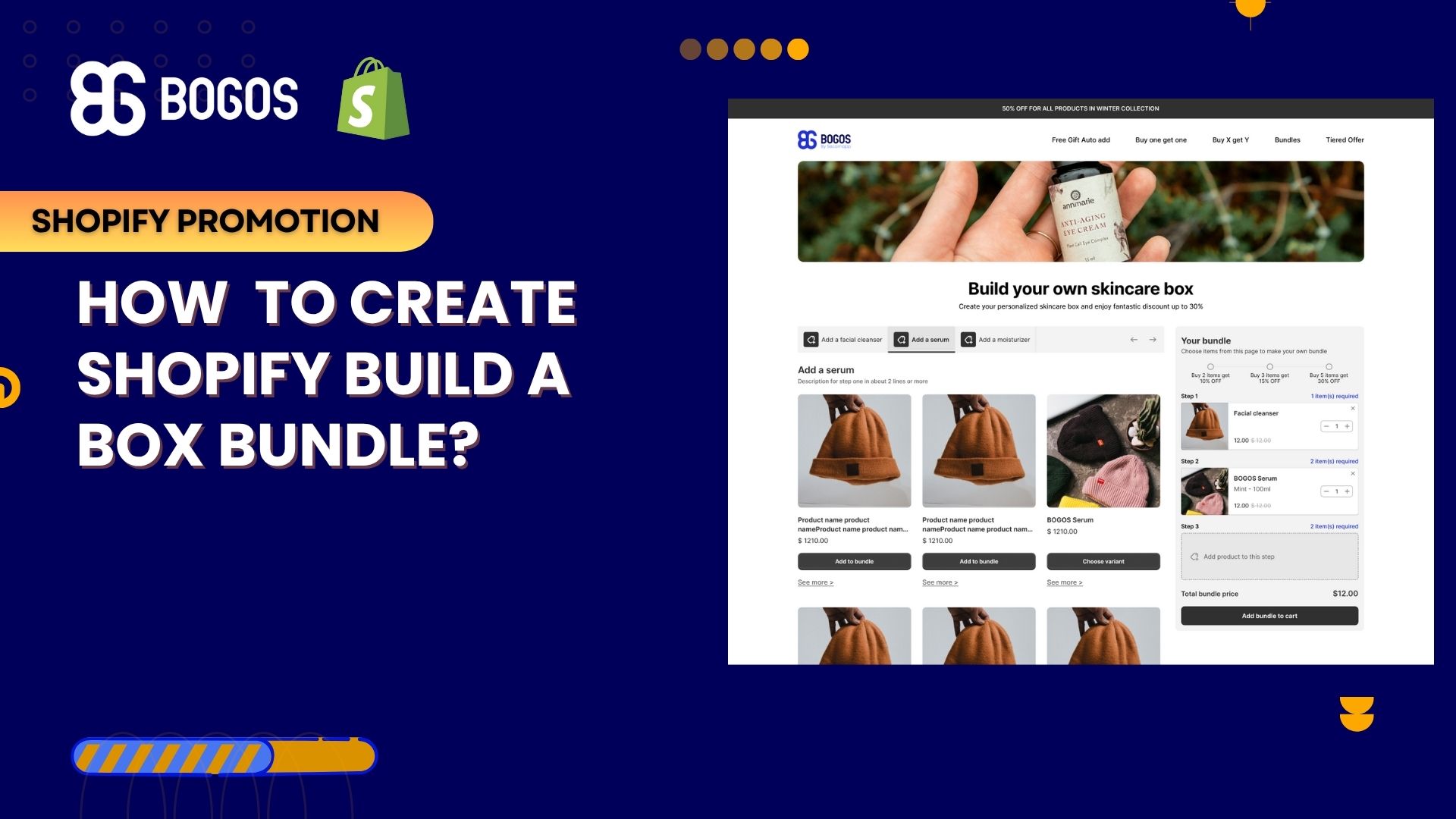
Shopify Build a Box feature has become one of the most exciting ways to sell online. Instead of pushing fixed bundles, you let customers mix and match to create something that feels personal, and that usually means bigger carts. In this guide, we’ll break down what Build a Box is, why it works, the best apps to use, and a full step-by-step setup with BOGOS. We’ve tested these flows ourselves, and we’ll share tips so you can launch your own box with confidence.
1. What is a Shopify Build a Box feature?
A Build a Box feature on Shopify lets customers put together their own bundle from products you choose to offer. Instead of buying a fixed set, shoppers can mix and match items that match their taste or budget. For instance, a snack brand could let customers design a variety pack by picking exactly five flavors they love, whether that means all spicy, all sweet, or a balanced mix.
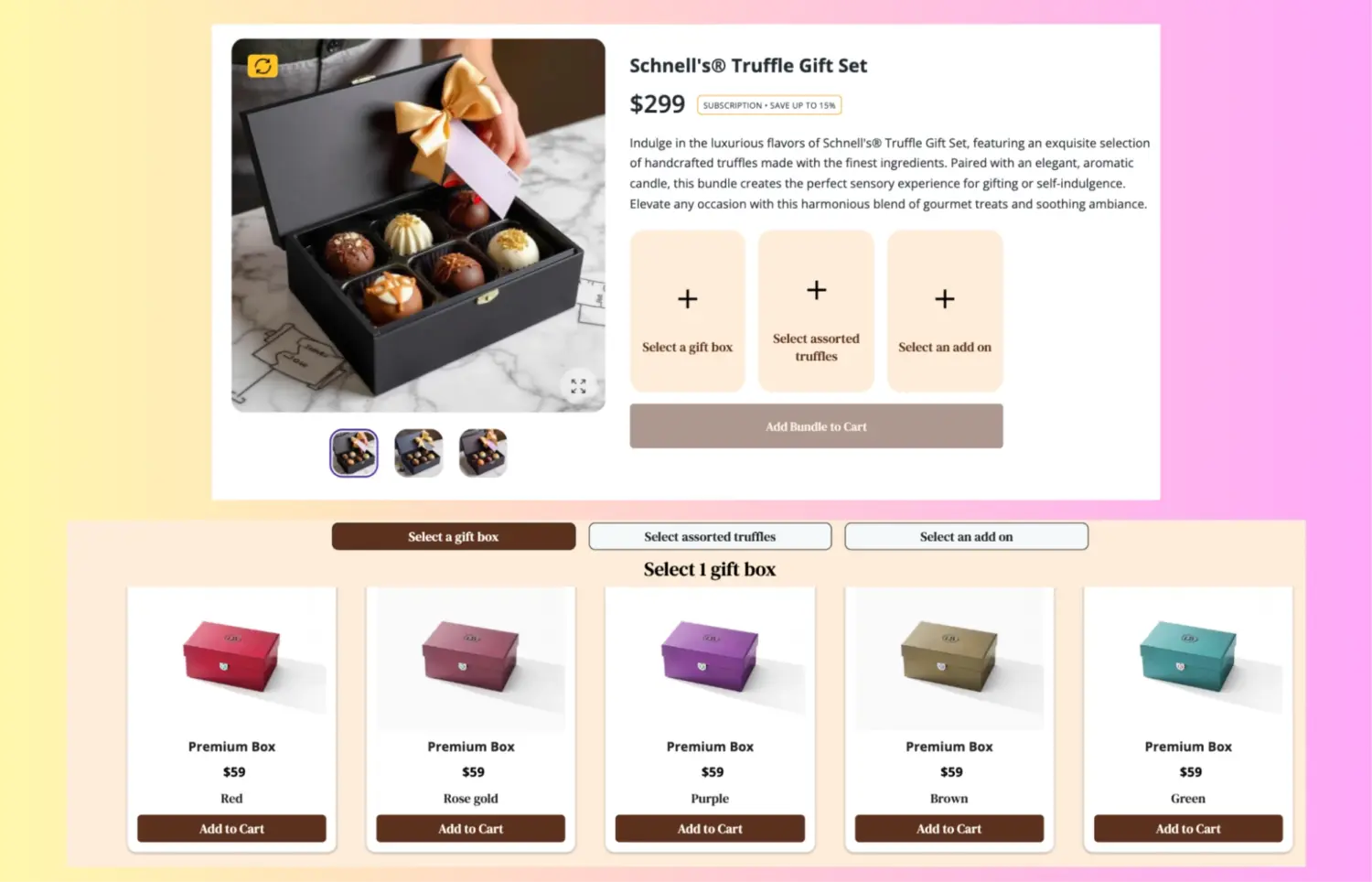
Beyond snacks, this model works beautifully for gifting. A chocolate store, for example, may guide customers through steps: first choose a gift box, then select different truffles to fill it, and finally add a small accessory like a candle or ribbon. The result feels like a thoughtful, personalized gift rather than a standard off-the-shelf product.
Boost average order value (AOV): Customers often add more items when they can mix and match, which naturally raises the total spend per order.
Create a personalized experience: Shoppers enjoy building something that reflects their own tastes, making the purchase feel unique and memorable.
Increase customer loyalty: When customers feel in control and satisfied with their choices, they are more likely to come back for repeat purchases.
Move inventory more efficiently: You can guide shoppers toward slower-moving products by including them as bundle options, helping balance stock levels.
2. How to Set Up a Shopify Build a Box Feature Using BOGOS?
Step 1: Install BOGOS from the Shopify App Store and open the app.
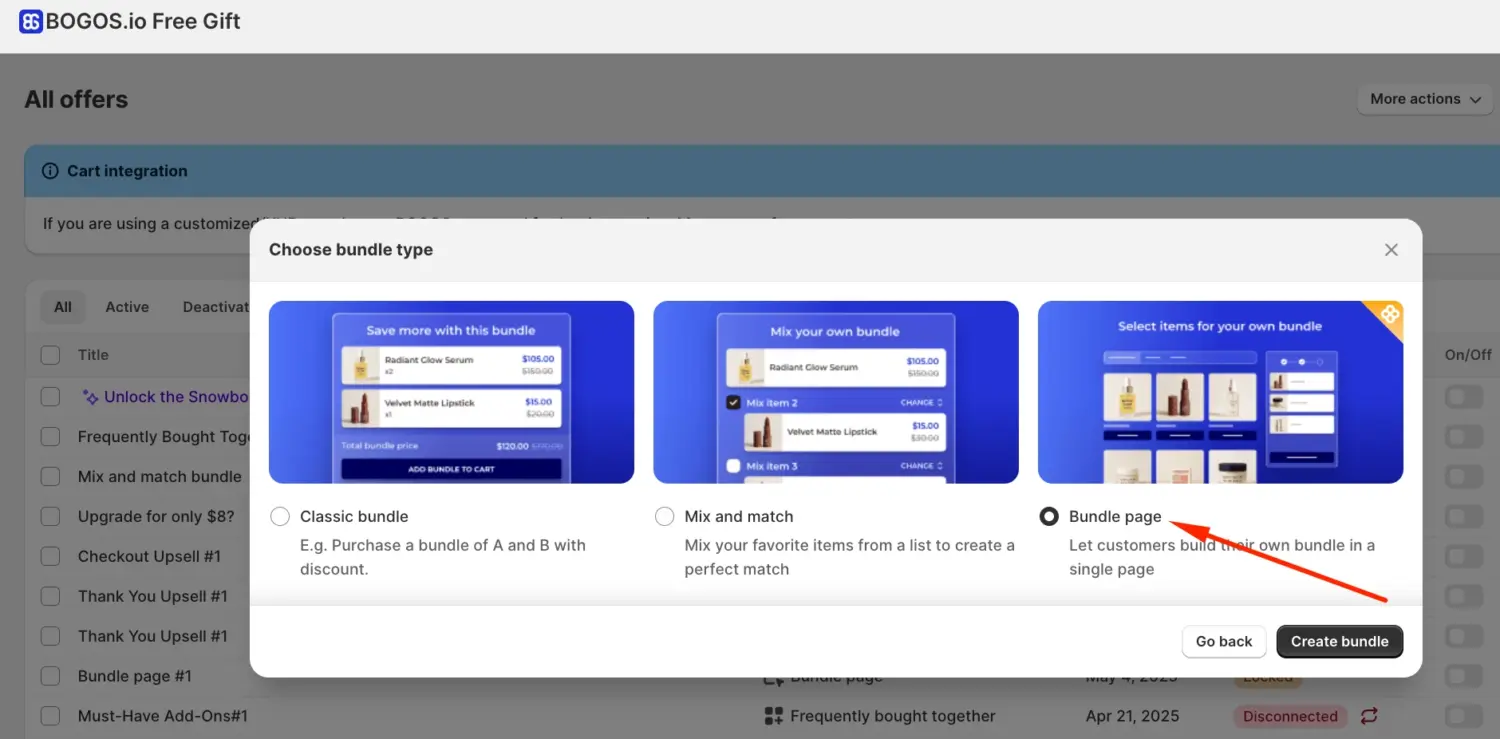
Step 2: Go to Bundle Offer → Create Bundle Page
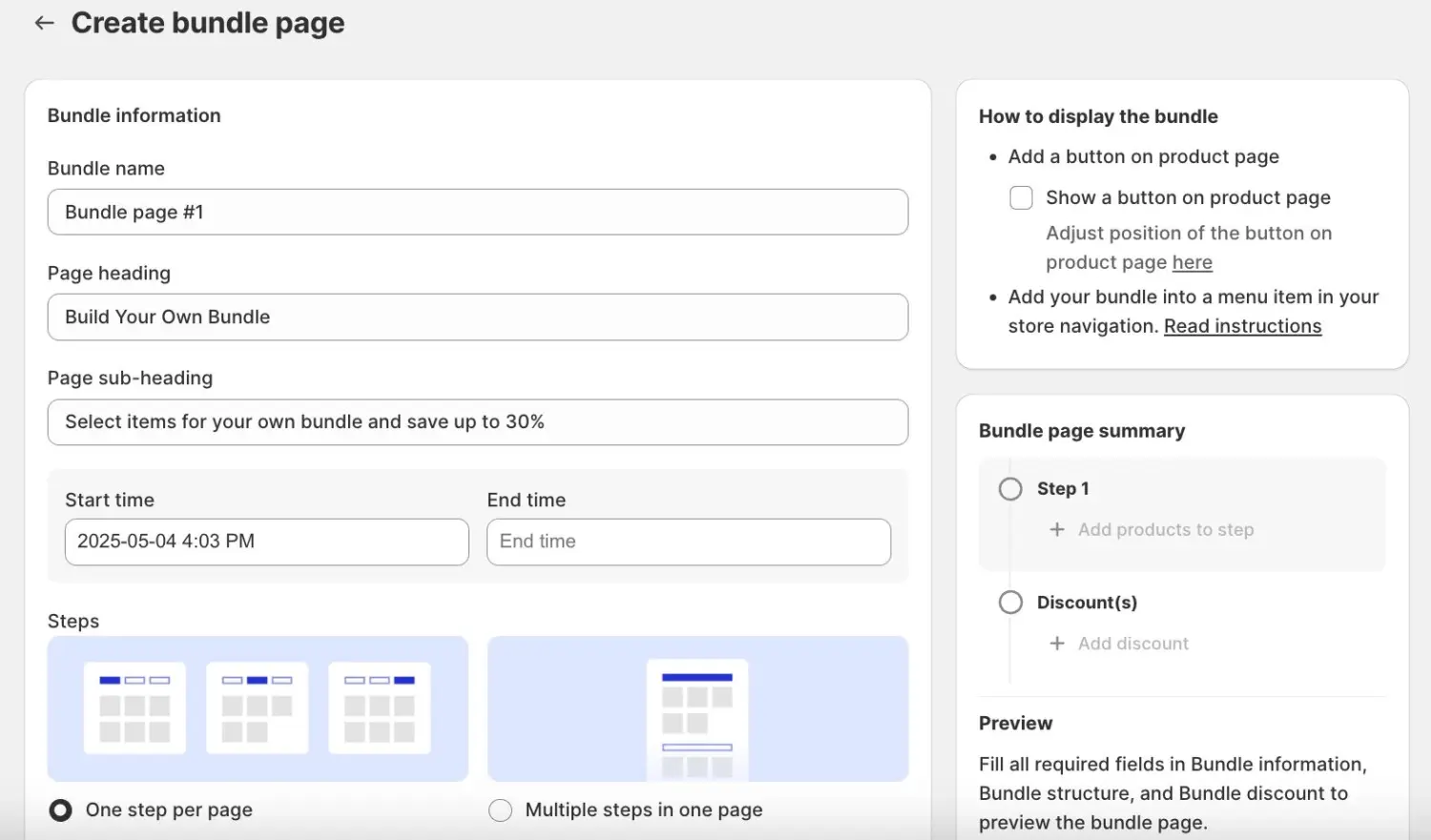
Step 3: Bundle Information:
Enter Bundle Name (internal use).
Add Page Heading & Sub-heading (customer-facing).
Set Start & End time if the offer is time-limited.
Choose flow style: One step per page (guided) or Multiple steps on one page (all-in-one).
Upload a Banner Image (1200×800px).
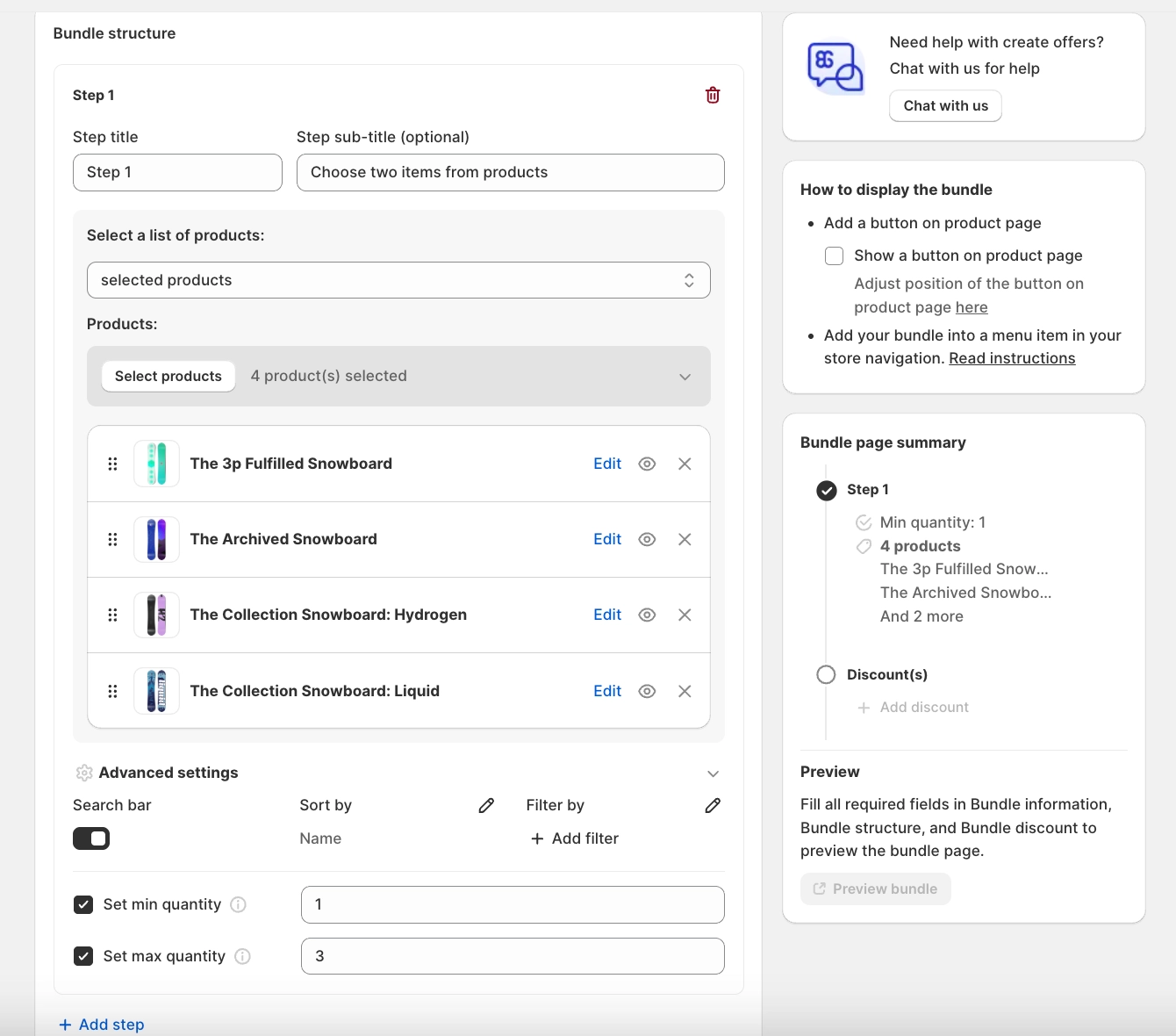
Step 4: Bundle Structure:
Add Step Title & Subtitle (e.g., “Step 1: Choose Your Snacks”).
Select products or collections for each step.
Configure Min/Max quantity to guide how many items customers can pick.
Advanced settings: Search, Sort & Filter for easy product discovery.
Notes:
Filter options are auto-detected from your store and can be combined.
For each filter, customers can select only one value at a time.
For the Price range, you only add the label. Shoppers set their own range.
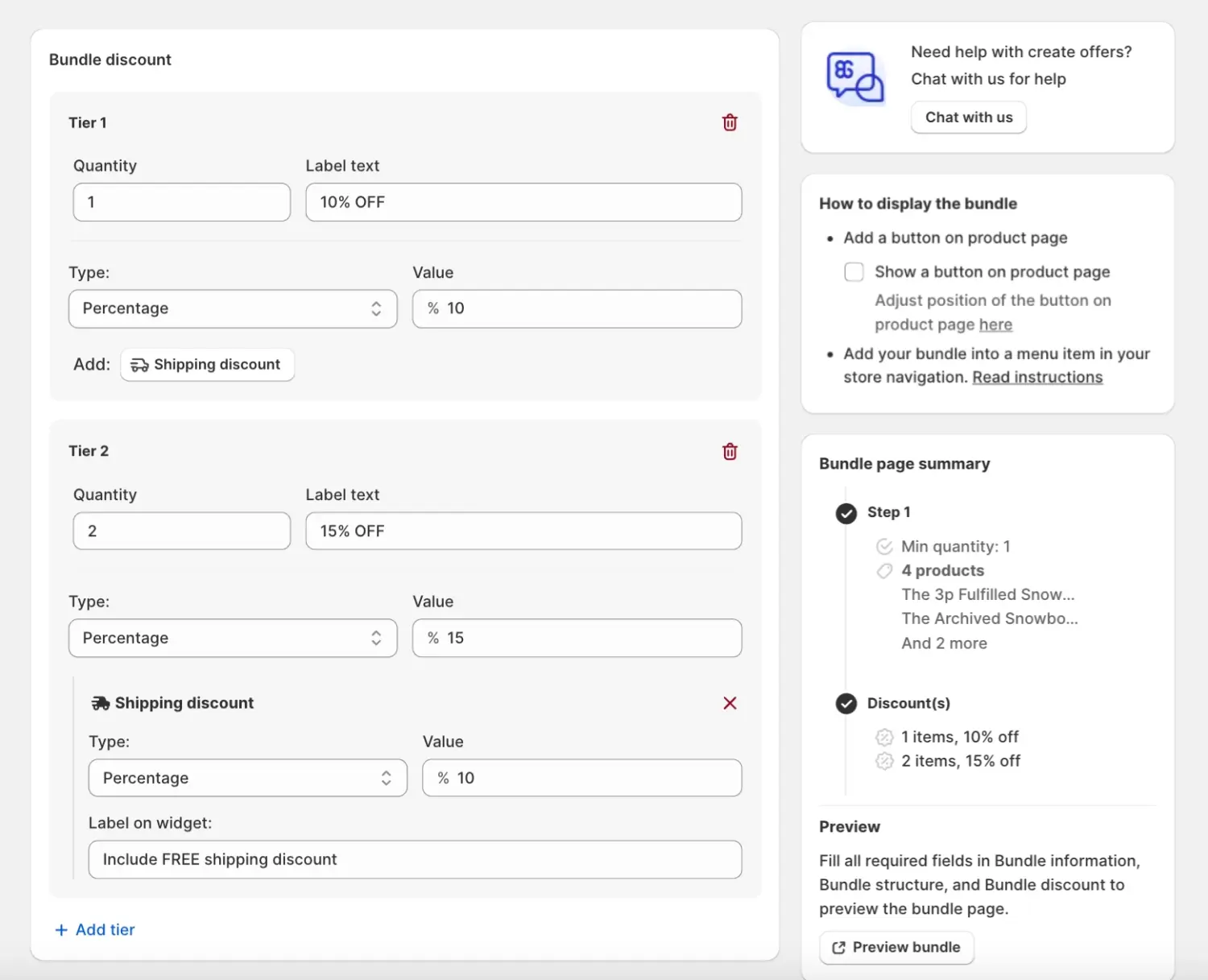
Discounts auto-update when the number of items changes, except for free gifts.
When using free gift, the gift line shows its original price in the cart.
For carts that do not support line-item updates, increasing the gift quantity updates the existing line correctly at checkout rather than creating a new one.
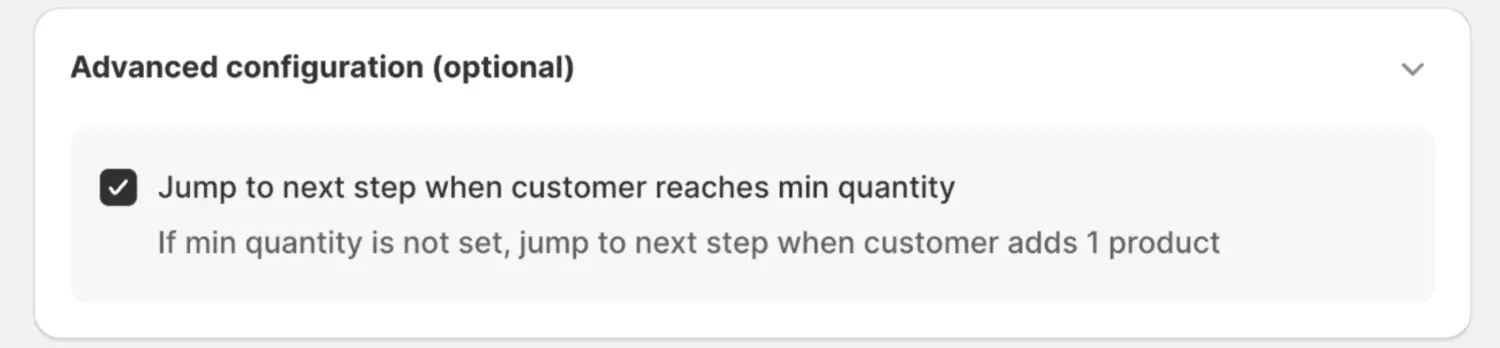
Step 6: Advanced Configuration (optional): control if the offer combines with other discounts or shipping promos.
Step 7: Save & Preview: check the Bundle Page Summary to confirm setup.
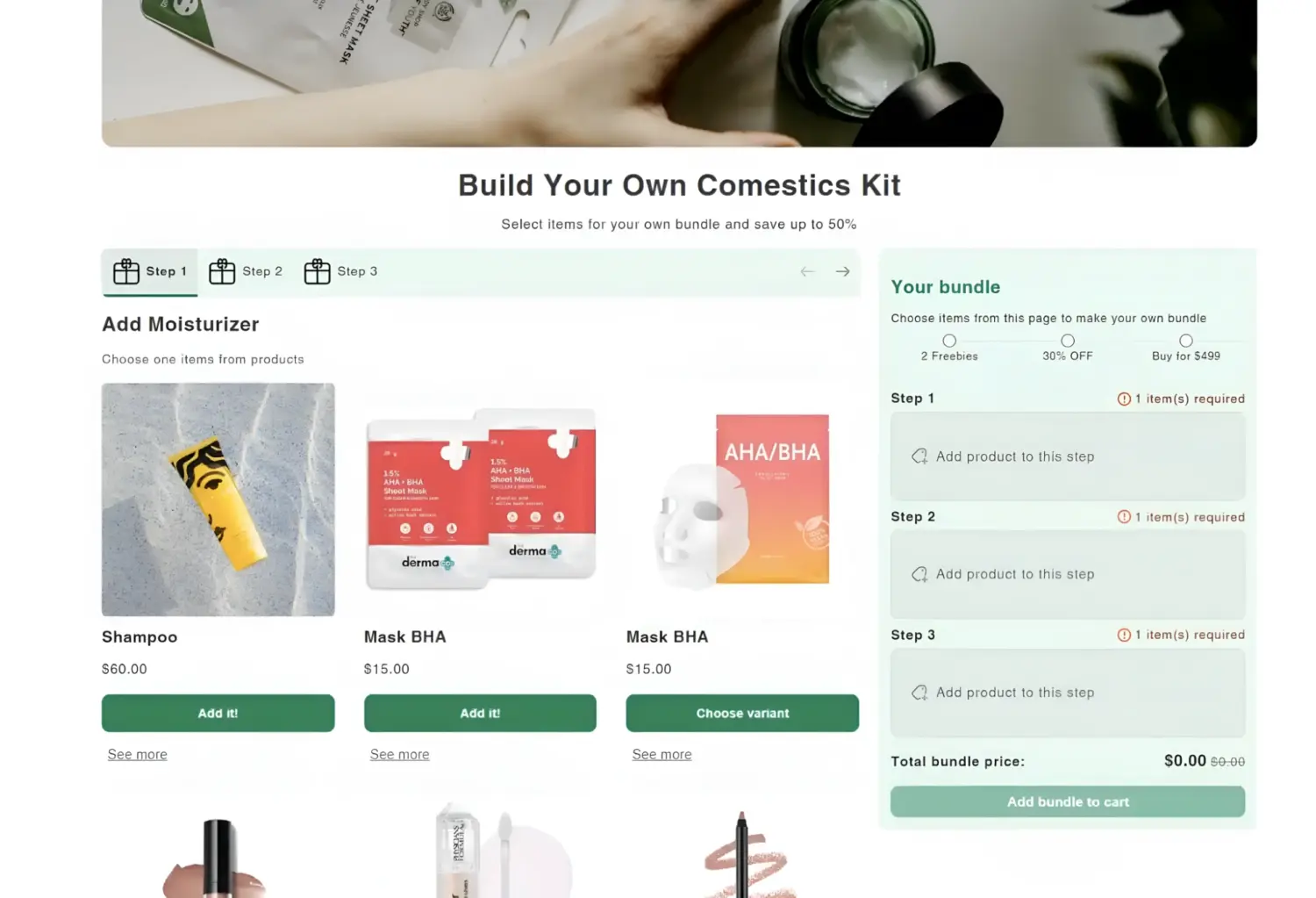
Step 8: Publish: test the flow on storefront → customers will now see a “Build Your Own Bundle” page and can customize their box.
3. Ideas to Use Shopify “Build a Box” Effectively
Here are a few proven approaches you can try:
Subscription snack boxes: Let customers build their own monthly variety pack. Some will stick to their favorites, others will switch it up every month. Either way, you lock in recurring revenue.
Gift-ready bundles: Perfect for holidays or special occasions. Shoppers can pick a base box, choose products, and add extras like cards or ribbons. The result feels more personal than a pre-made gift set.
Mix & match fashion packs: Apparel and accessory brands can let buyers choose 2–3 items from a collection at a special flat price. It encourages upsells without feeling pushy.
Self-care or beauty kits: Customers love curating their own skincare or spa box. Offering a “build your ritual” experience makes the box feel luxurious and customized.
Theme-based bundles: Seasonal “Back to School,” “Summer Essentials,” or “Winter Warmth” boxes work great. You set the theme, and customers choose the mix inside.
Tips to make it work better:
Keep it simple: Don’t overload shoppers with too many choices — 5 to 10 options per category is enough.
Highlight the value: Show the savings vs. buying items separately, so customers clearly see the deal.
Make it visual: Use product images and progress bars (e.g., “3 of 5 items selected”) to guide the build flow.
Test and refine: Track AOV, completion rate, and popular picks to keep improving your box offers.
4. Conclusion
From our perspective, Shopify Build a Box feature is the perfect mix of personalization and profit. Customers love the freedom, and merchants love the extra sales. If you’re ready to make it happen, installBOGOS and start building your box now.
FAQs
What is a Shopify Build a Box feature?
A Shopify Build a Box feature is a shopping feature where customers can create their own bundle by choosing products from a list you provide. Instead of buying a fixed set, shoppers mix and match items to make a personalized box.
Can I create a Shopify Build a Box feature without an app?
Technically, yes, but it’s very complex and requires heavy custom coding. Shopify doesn’t have a native build-a-box feature, so you’d need to manage inventory, pricing, and the customer interface manually.
How do apps handle inventory for bundles?
Bundle apps usually sync inventory with the original products. When a bundle is sold, the stock of each included product is reduced. For example, Simple Bundles calculates bundle inventory based on the lowest-stock item to avoid overselling.
Can I offer a Shopify build a box feature as a subscription?
Yes. Many subscription apps allow you to pair the build-a-box model with recurring orders. For example, Recharge and Bold Subscriptions both let customers build their own box and then receive it on a regular schedule, like monthly or quarterly.